

What are Teammates?
The Teammates feature lets you add employees, partners, family or assistants to help run your store — without sharing your personal login. Each teammate gets their own sign-in credentials and only sees the parts of the account you allow.
Common use cases:
A shop assistant who processes and send orders or creates and updates listings.
An events coordinator who manages ticket sales and pre-orders.
Airbnb manager who manages bookings and follows up on reservations.
An accountant who reviews earnings and payout reports.
Your son or daughter who takes pictures, uploads product images and manage social media.
Important: Only the store owner can add, edit, or remove teammates. Teammates cannot add other teammates, even if they have full permissions.
Who can use this feature?
Business Owner (the person who registered the business account) has Full access. Can add up to 10 teammates, assign permissions, remove teammates at any time, and see the log of everything the teammates are doing - adding or editing products, fulfilling orders, etc.
Teammate (added staff member) has Limited access based on the permissions the owner assigns. Cannot access the Teammates page.
Teammate limit: Each business account can have a maximum of 10 teammates. If you need more, contact Tambala Market support.
How to add a Teammate
Step 1: Open the Teammates page
Sign in to your dashboard at
[https://tambalamarket.store/seller](https://tambalamarket.store/seller).In the left-hand menu, go to System → Teammates (or visit
/seller/teammatesdirectly)
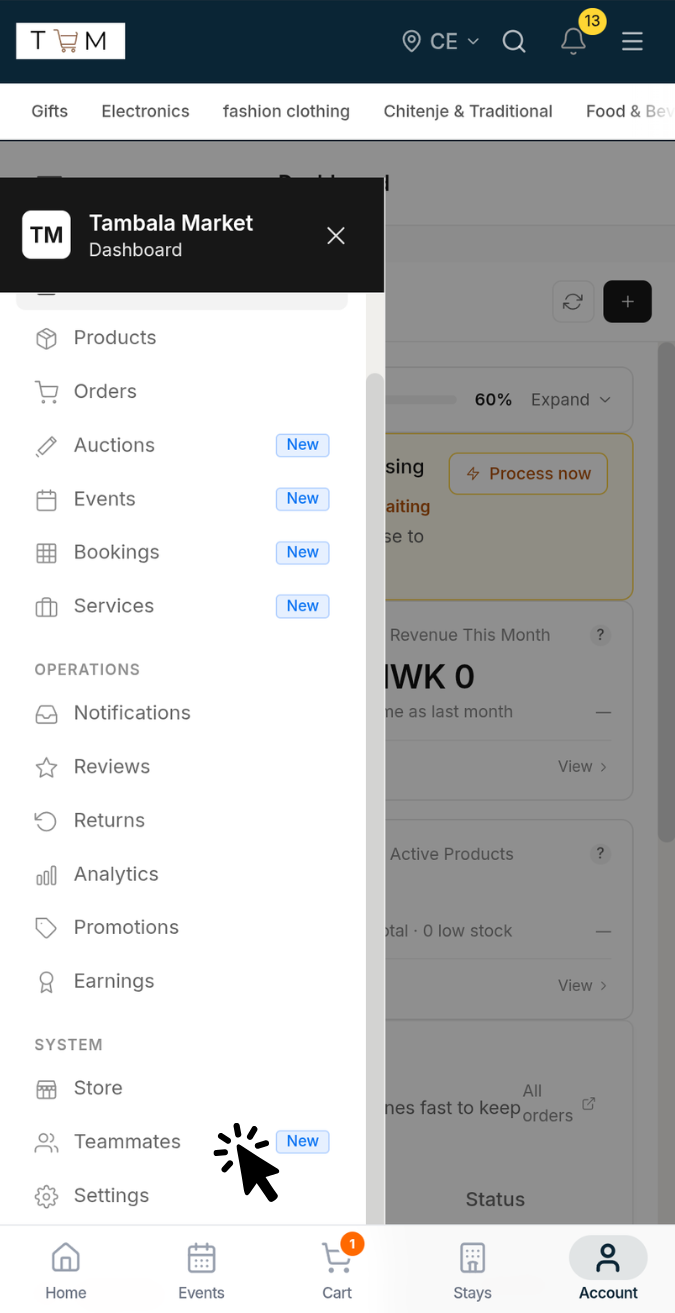
Step 2: Click "Add Teammate"
Click the Add Teammate button in the top right corner. A form will appear.
Step 3: Enter teammate details
What to enter:
Full name - The teammate's display name (e.g., "Grace Banda").
Phone number or email - A valid email or mobile number with country code. This becomes the teammate's login ID. Malawian numbers starting with
099...or088...are accepted.Password - (optional)Tick "Set a custom password" to create your own, or leave it unticked and the system will generate a secure temporary password.
Step 4: Choose permissions
Select the permissions you want to grant. You can pick individual checkboxes or use a Quick Preset to select a group at once:
Preset Permissions included Staff (Full Access): View & manage orders, view & manage products, manage events, bookings, services, auctions, view analytics.
Orders Only: View and manage orders only. Ideal for fulfillment assistants.
Events Manager: Manage events and bookings, plus view and manage orders. Ideal for event coordinators.
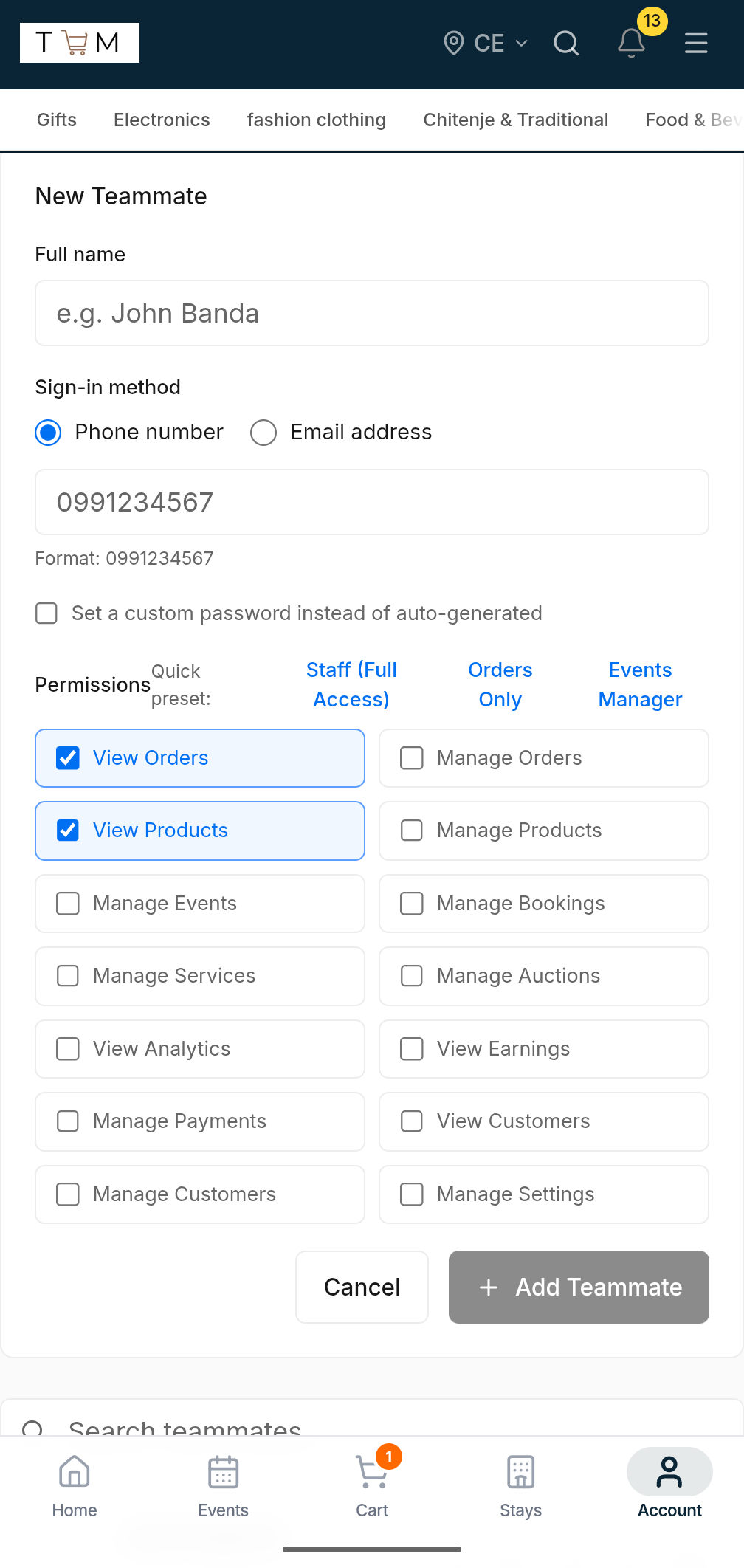
Tip: After applying a preset, you can still add or remove individual permissions before saving.
Step 5: Save and share credentials
Click Add Teammate. A success banner appears with the teammate's:
Phone number (their login ID)
Internal email (auto-generated, for reference)
Temporary password
Copy and share these securely with your teammate via WhatsApp, SMS, or in person. They will be required to change their password on first sign-in.
Permission reference
Permissions are enforced at three levels for maximum security:
Navigation — Teammates only see sidebar menus they have permission for.
Pages — Attempting to visit a restricted URL shows an "Access Restricted" message or redirects to the dashboard.
API routes — Every backend request validates permissions. A teammate cannot bypass restrictions with custom scripts or direct API calls.
Full permission list
Permission - What the teammate can do - Typical role
View Orders: See the orders list, order details, and customer information.
Manage Orders: Confirm, ship, cancel, and update order status.
View Products: Browse the product catalog and view product details.
Manage Products: Create, edit, delete, and publish products. Manage collections and promotions.
Manage Events: Create and edit event listings, set ticket prices, manage event schedules.
Manage Bookings: Create and manage stay; Airbnbs, apartments, villas, etc., bookings, availability calendars and reservations.
Manage Auctions: Create and manage auction listings, monitor bids.
View Analytics: See sales dashboards, traffic reports, and performance charts.
View Earnings: View payout history, transaction records, and revenue summaries.
Manage Payments: Request payouts and update bank account details.
View Customers: See the customer list, review details, and customer inquiries, reviews, etc.
Manage Customers: Respond to customer inquiries and manage disputes.
Manage Settings Update store profile, delivery settings, store banners, and business details.
Note: The Teammates page itself is always owner-only. No teammate can add, edit, or remove other teammates, regardless of their permissions.
Managing existing teammates
From the Teammates page, you can manage anyone on your team:
How to do it:
Search teammates using the search box at the top of the list. Filter by name or phone number.
Edit phone number: Click the pencil icon next to a teammate → enter the new number → confirm. Updates their login ID and internal email instantly.
Edit permissions: Click the shield icon next to a teammate → adjust checkboxes → save.Permissions update immediately. The teammate sees changes on their next page load.
Reset password: Click the key icon next to a teammate → confirm.Generates a new temporary password. Share it securely with the teammate.Disable account: Click the lock icon next to an active teammate → confirm.Blocks sign-in immediately. The teammate cannot access the dashboard until re-enabled.
Enable account: Click the unlock icon next to a disabled teammate → confirm.Restores access immediately.
Delete permanently: Click the trash icon next to a teammate → confirm. Delete is Irreversible. It removes the teammate's account and all associated data.
Best practice: If a teammate is leaving temporarily, use Disable instead of Delete. This preserves their account and permissions for when they return.
For Teammates: Getting started
Your first sign-in
When the store owner adds you, they will share:
Your phone number (the one they entered — this is your login ID).
A temporary password (either system-generated or custom).
Sign in for the first time
Go to
[https://tambalamarket.store/auth/login](https://tambalamarket.store/auth/login).In the Email or phone number field, enter your phone number with the country code (e.g.,
+265991234567).In the Password field, enter the temporary password the owner shared.
Click Sign In.
Set your new password
On first login, you will be redirected to a "Set a New Password" page:
Enter your current (temporary) password one more time.
Choose a new password (minimum 8 characters, with at least one letter and one number).
Confirm the new password.
Click Change Password.
You must complete this step before you can access the dashboard.
Access your dashboard
After changing your password, click "Continue to Dashboard". You will see only the sections the owner has allowed.
Signing in after setup
Once you have changed your password, sign in is simple:
Go to
[https://tambalamarket.store/auth/login](https://tambalamarket.store/auth/login).Enter your phone number.
Enter your new password.
Click Sign In.
What you can and cannot access
Your dashboard adapts automatically based on your permissions:
Menus: You only see sidebar items you have permission for.
Buttons: Action buttons (like "Create Product" or "Confirm Order") only appear if you have the matching manage permission.
Direct URLs: Typing a restricted URL directly will show an "Access Restricted" page or redirect you to the dashboard.
You cannot do any of the following, even with full permissions:
Add or remove other teammates.
Delete or close the store.
Access the Teammates management page.
Security note: Permission checks happen on both the screen you see and the server that processes requests. You cannot bypass restrictions by editing a URL or using external tools.
Forgot your password?
Teammates do not have self-service password recovery. Contact your store owner and ask them to reset it:
The owner goes to System → Teammates.
Finds your name in the list.
Clicks the key icon next to your name.
Shares the new temporary password with you.
You sign in and set a new password again.
Security best practices
For store owners
Share credentials privately. Send temporary passwords through WhatsApp, Signal, or in person. Avoid public channels like group chats or social media.
Grant the minimum necessary permissions. Only give teammates access to the features they actually need for their role.
Disable before you delete. If a teammate leaves, disable their account immediately. Only delete after you are certain you no longer need their activity history.
Review your team monthly. Check the Teammates page regularly. Remove anyone who no longer works with you.
Never share your own password. Teammates have separate logins. Sharing your credentials defeats the purpose of the permission system.
Require password changes. Teammates are forced to change their temporary password on first login. Make sure they do this promptly.
For teammates
Change your temporary password immediately. Do not delay the forced password change.
Choose a strong password. Use at least 8 characters with a mix of uppercase, lowercase, and numbers. Avoid birthdays or simple sequences.
Do not share your login. If another person needs access, ask the store owner to add them as a separate teammate.
Sign out on shared devices. Always click Sign Out when using a public or shared computer.
Report suspicious activity. If you notice actions you did not take, inform the store owner immediately.
Frequently asked questions (FAQ)
Q: Can a teammate see my earnings or payouts?
Only if you grant them the "View Earnings" or "Manage Payments" permission. Without these, they cannot see financial data.
Q: Can I change a teammate's permissions after they are created?
Yes. Click the shield icon next to their name, adjust the permissions, and click Save. Changes apply immediately.
Q: What happens if I disable a teammate?
They are immediately logged out and cannot sign in again until you re-enable them. Their data and history are preserved.
Q: What happens if I delete a teammate?
Their account and profile are permanently removed. This cannot be undone. If you need them back, you must create them as a new teammate.
Q: Can a teammate have the same phone number as me?
No. Phone numbers must be unique across the entire platform because they are converted to internal email addresses for authentication.
Q: My teammate can't log in. What should I check?
Confirm the phone number includes the country code (e.g.,
+265991234567 or 0991234567).Verify the password was copied correctly (no extra spaces).
Check if the account is disabled on the Teammates page.
If all else fails, reset their password and try again.
Q: Can a teammate use the mobile app?
Teammates sign in using the same login page as everyone else. Their access is determined by permissions, not by device. However, some mobile screens may not yet fully support the teammate permission model.
Q: Is there an audit log for teammate actions?
Yes. Every action — create, delete, password reset, permission update, disable/enable — is logged with a timestamp and the owner's User ID and can be reviewed by Tambala Market support if needed.
Q: Can I export a list of my teammates?
Not directly from the dashboard. You can copy the list manually or contact support for an export.
How permissions protect your business
The teammate system uses a three-layer defense model:
Layer 1: Navigation
The sidebar automatically hides menu items that the teammate does not have permission for. This keeps the dashboard clean and reduces confusion.
Layer 2: Page guards
Every restricted page is wrapped with a permission check. If a teammate somehow visits a URL they should not access, they see an "Access Restricted" message instead of the page content.
Related help articles
Originally published on Tambala Market.